
Diagnostic LOG file

Diagnostic LOG file

When encountering a licensing issue, the initial step is to check the diagnostic log file. Unless you receive a specific error code directly, the diagnostic log provides more information on the current situation.

How to access the diagnostic LOG file?

When an error code appears, the program will prompt you to view the diagnostic log file. Click Yes to access it directly.

Alternatively, the diagnostic file can be accessed through the License Manager. The procedure varies depending on your software version. Identify your version and follow the corresponding steps.

Version 39.5 and later:

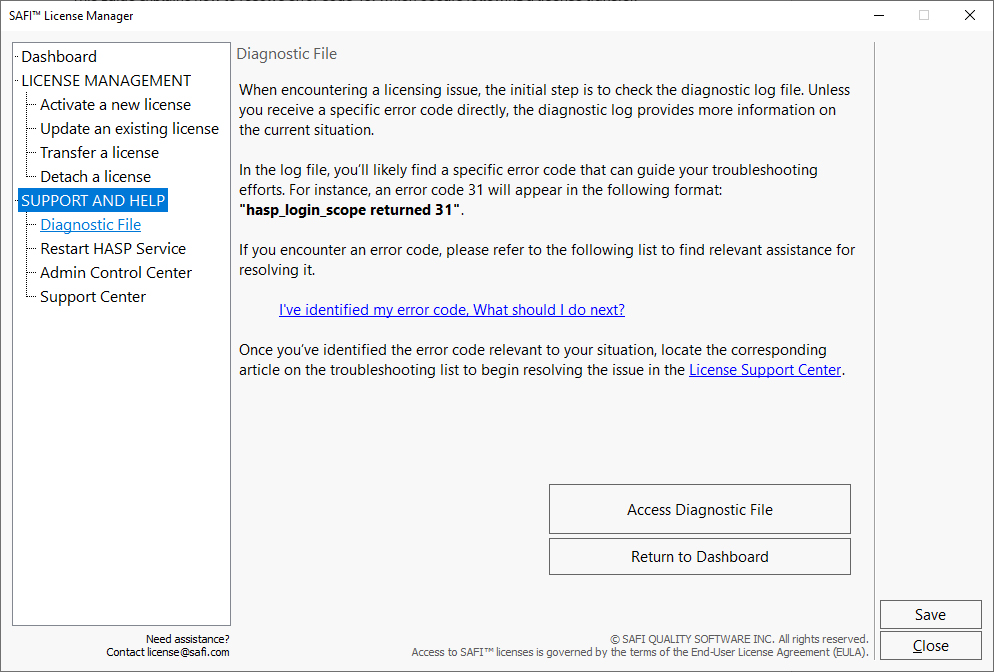
To generate the diagnostic log file, open the License Manager. From the left menu, select Diagnostic File under the Support & Help section. Click Access Diagnostic File, then click Copy Diagnostic File.

In the log file, you’ll likely find a specific error code to guide your troubleshooting. For instance, error code 31 will appear in the following format: “hasp_login_scope returned 31”.

Once you’ve identified your error code, find the corresponding article in the Licensing Support Center to begin troubleshooting.

Pro Tip: You can also copy the diagnostic file, and paste it into the SAFI AI Assistant for further assistance. Our AI Assistant is available 24/7 to help you instantly.
Versions prior to 39.5:

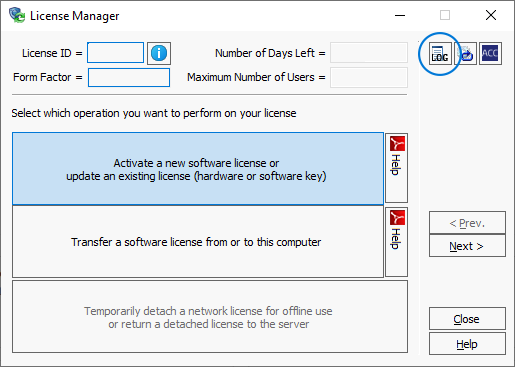
If you are using a version prior to 39.5, you can access the Log file by clicking the LOG icon in the upper right corner of the License Manager or License Configuration utility.

In the log file, you’ll likely find a specific error code to guide your troubleshooting. For instance, error code 31 will appear in the following format: “hasp_login_scope returned 31”.

Once you’ve identified your error code, find the corresponding article in the Licensing Support Center to begin troubleshooting.

Pro Tip: You can also copy the diagnostic file, and paste it into the SAFI AI Assistant for further assistance. Our AI Assistant is available 24/7 to help you instantly.

Still need help?

Our AI Assistant is available 24/7 and can resolve most issues instantly. However, if you still need assistance, save the diagnostic file and attach it when opening a licensing ticket. Our team will get back to you as quickly as possible.